Support

Get help with Kimedics

Open a ticket, check one you have already raised, or find the walkthrough for the screen you are stuck on.

Start here

Pick the one that fits your problem

support-icon-ticket

Submit a ticket

Tell us what happened and our support team picks it up. The more detail you include, the faster it moves.

Open the form →
support-icon-status

Check an existing ticket

Sign in to the customer portal to see the status of anything you have already raised, and to reply in the thread.

Go to the portal →
support-icon-video

Watch a walkthrough

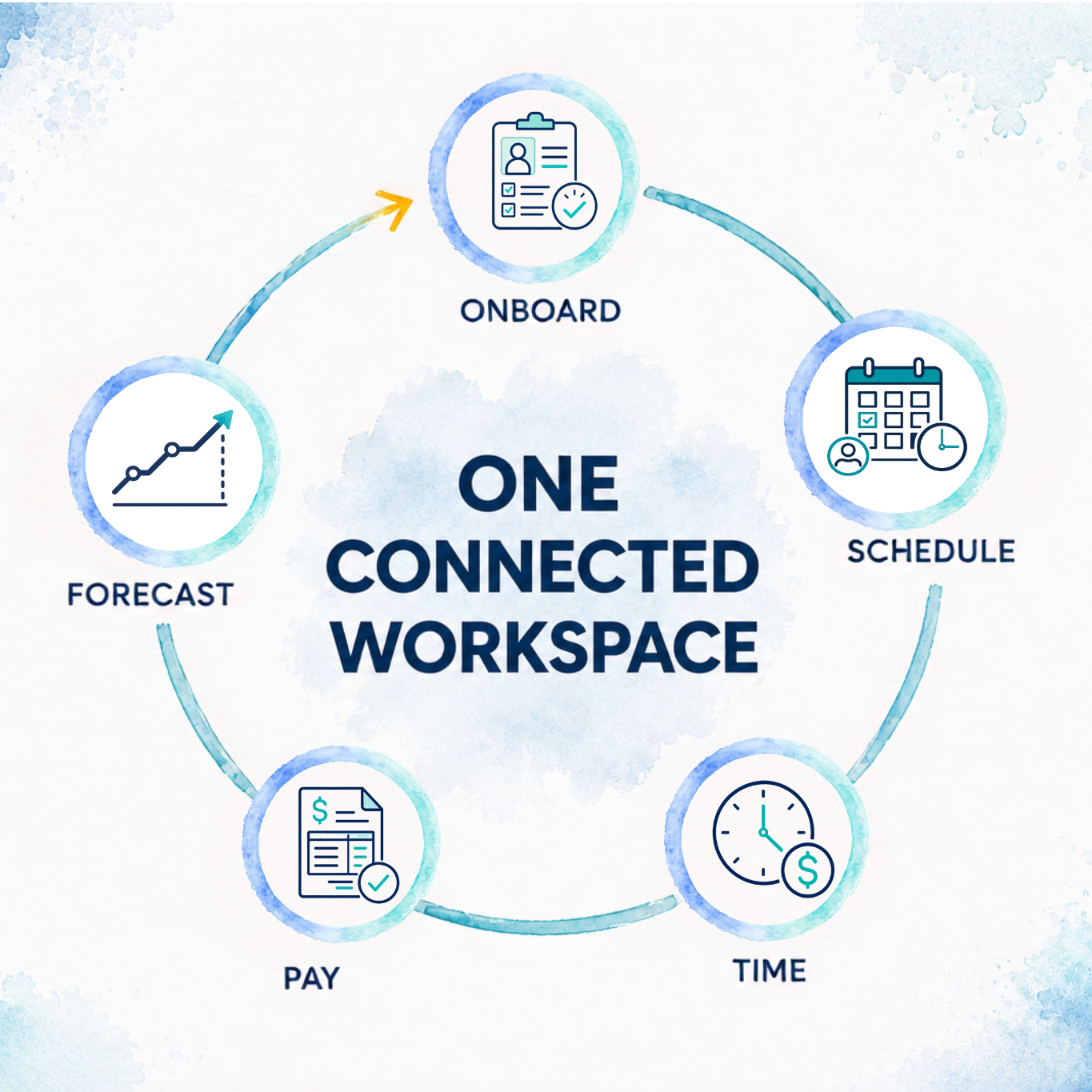
Short product videos for onboarding, scheduling, time and pay, billing, mobile, and setup and permissions.

Open the video library →
Submit a ticket

Tell us what happened

A few specifics get you a faster answer than a long description does. Before you send it, check you have included:

  • Which app you were in: desktop, clinician mobile, or manager mobile
  • The practice, and the clinician the issue affects
  • If you hit an error, what you were doing when it appeared
  • A screenshot of the screen you are stuck on, with the URL